

Do you need mesh Wi-Fi? How to pick a kit
Mesh Wi-Fi fixes dead zones in larger homes, but not every home needs it. Here is how to tell, and what to look for if you do.
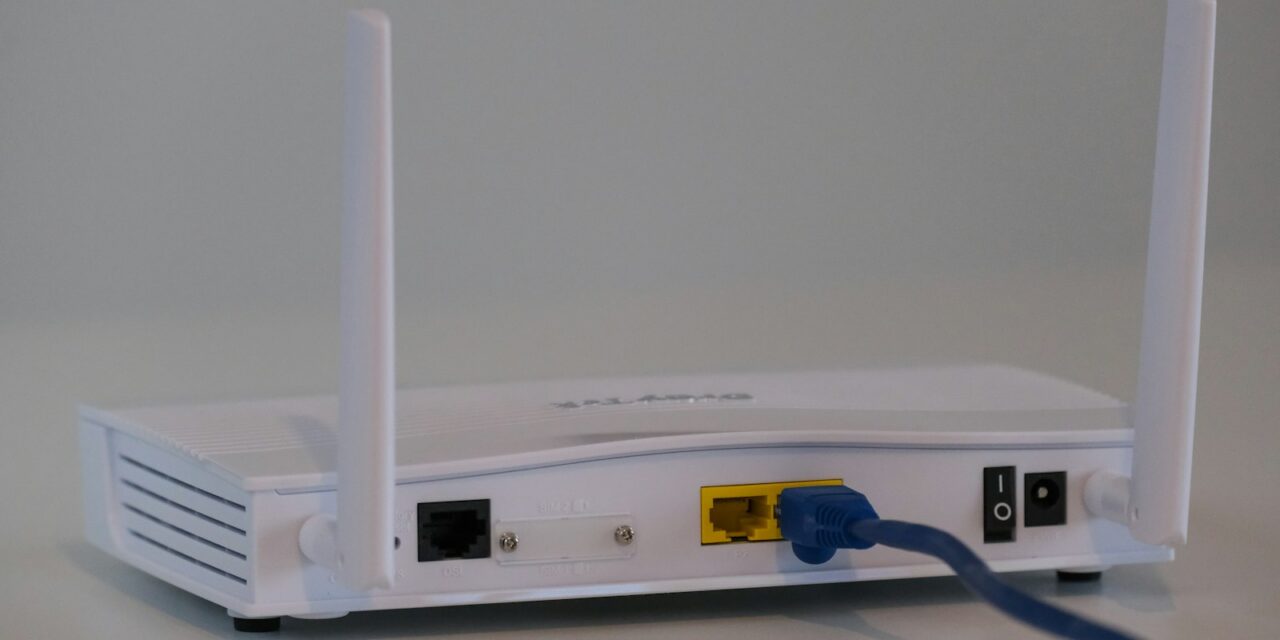
A mesh Wi-Fi system replaces your single router with two or three units placed around your home. They work together as one network, so your phone moves between them without you noticing. Done right, the back bedroom gets the same connection as the living room.
Mesh kits are also heavily marketed to people who do not need them. Start there.
First, check whether you need one
You probably do not need mesh if you live in a small or mid-sized home on one floor and your router sits near the middle of it. A single good router covers that.
Try the free fixes before spending money:
- Move the router out of the cupboard and off the floor. Put it high up and as central as you can.
- If your router is more than five or six years old, a single modern replacement may solve the problem.
Mesh earns its price when you have more than one floor, a long or L-shaped layout, thick brick or concrete walls, or rooms where the signal drops however you place one router.
Which Wi-Fi version to buy
- Wi-Fi 6. The sensible baseline. Fast enough for nearly every home and the cheapest.
- Wi-Fi 6E. Adds a third, less crowded band (6 GHz). Helpful in apartment buildings with many competing networks.
- Wi-Fi 7. The newest and fastest. Worth it mainly if you have a multi-gigabit internet plan and recent devices that support it.
Your network is only as fast as the slowest link. If your internet plan is 300 Mbps, a Wi-Fi 7 kit will not make it faster. Match the kit to your plan and your devices.
How the units talk to each other
This is the detail that decides real-world speed. The link between units is called the backhaul.
- Wired backhaul. If your home has network cable in the walls, or you can run one, connect the units by cable. This is the fastest and most reliable setup by a wide margin.
- Wireless backhaul. The units talk over Wi-Fi. Look for a tri-band kit, which reserves one band for that conversation so it does not compete with your devices.
How many units
More is not better. Too many units close together interfere with each other.
As a rough guide, two units suit most homes up to about 2,500 square feet, and three suit larger or multi-floor homes. Buy the smaller pack if you are unsure. You can nearly always add a unit later.
Placement
Put the main unit where your internet comes in. Place each additional unit about halfway between the main one and the area with weak signal, not in the dead zone itself. A unit that sits where the signal is already poor has nothing good to pass along. Keep them in the open, away from metal and large appliances.
Check before you buy
- Ethernet ports. Some units have only one or two. If you want to plug in a TV, console or desktop, count them.
- Subscriptions. Several brands put parental controls and security features behind a monthly fee. Know what is included.
- Account requirements. Many kits need a phone app and an online account to set up.
- Your internet provider’s box. If your provider’s modem is also a router, you may need to switch it to bridge mode to avoid two networks fighting each other.
The bottom line
Fix placement first. If you still have dead zones, a two-unit Wi-Fi 6 kit solves the problem in most homes, and a cable between the units makes any kit perform far better.